Introduction
This topic allows users to dynamically select an enroute alternate—or none at all—based on the operational requirements of the operator for IFR flights.
We estimate that this will take 5 minutes to complete.
Detailed Explanation
The updated Dynamic Alternates allows users to select an enroute alternate or none, based on their operational requirements for IFR flights. It provides flexibility, automation, and compliance benefits as users can configure alternate airport requirements.
By enabling Dynamic Alternates functionality, the system evaluates real-time flight conditions such as Ceiling and Visibility, with optional settings for Minimum Runways and Maximum Flight Time to determine whether an alternate airport is required and provides automatic warnings when outside defined tolerances. This ensures that alternate planning is both compliant and operationally efficient, saving time and resources, especially for organizations subject to EASA regulations.
Additionally, it streamlines the flight planning process by reducing unnecessary alternates.
Course Overview
This eLearning consists of the following content:
You will learn how to determine whether an alternate airport is required and how to view automatic warnings when outside defined tolerances
You will learn how to add Ceiling and Visibility requirements.
You will learn about optional settings for Minimum Runways and Maximum Flight Time.
N-Flight Planning (NFP) enables users to dynamically select an enroute alternate—or none at all—based on the operator's operational requirements for IFR flights. This functionality applies to the Dynamic Alternates feature.
Note: The new default settings in the Airline Code Parameters menu require configuration for customers operating under EASA regulations to enable the Dynamic Alternates feature.
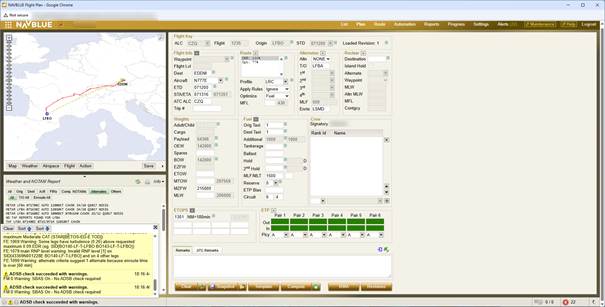
Alternates
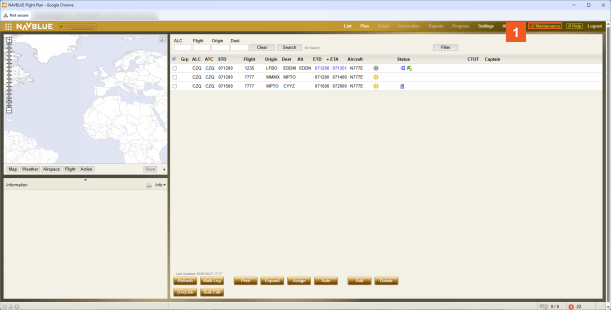
 Click the Maintenance menu item.
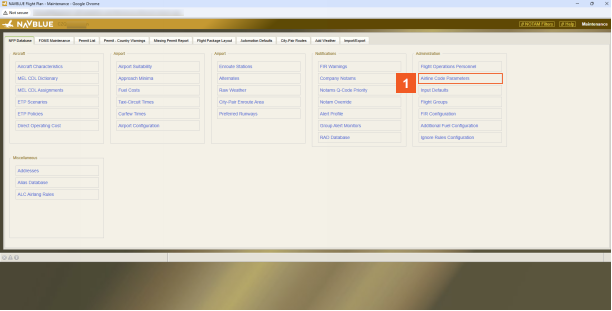
 Click the Airline Code Parameters list item.
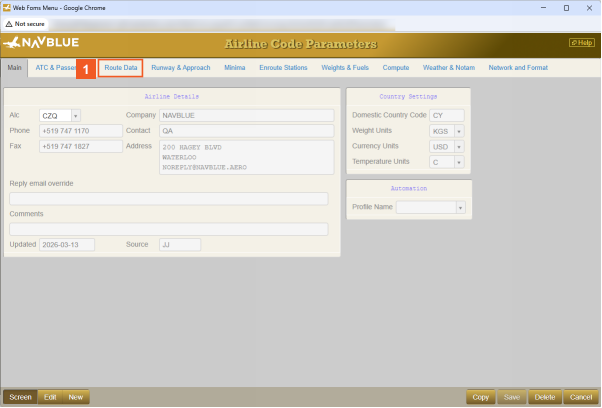
 Click the Route Data menu item.
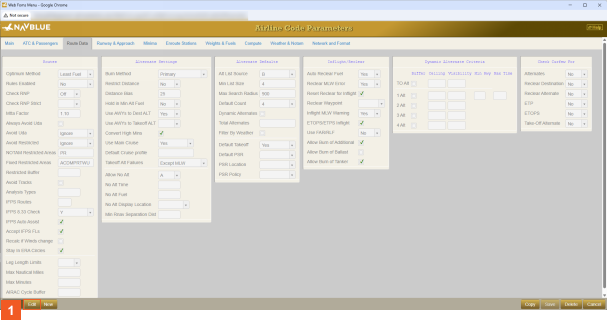
 Click the Edit button.
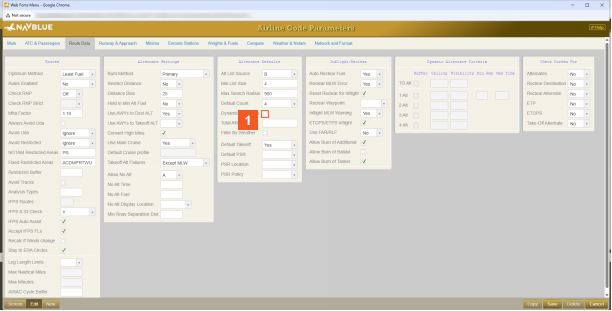
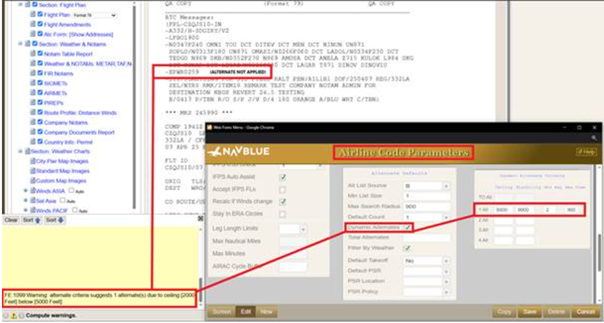
 Click the Dynamic Alternates check box.
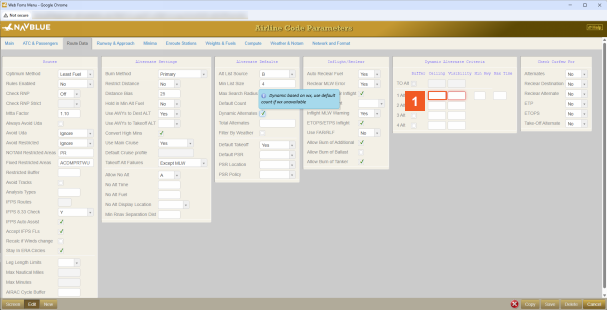
 Click the 1 Alt (Ceiling) input field.
Once Dynamic Alternates is selected, Ceiling and Visibility fields are highlighted in red, indicating that they are mandatory.
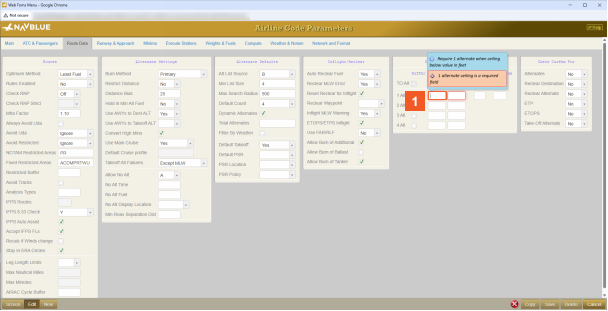
 Enter 1000 into the 1 Alt (Ceiling) field.
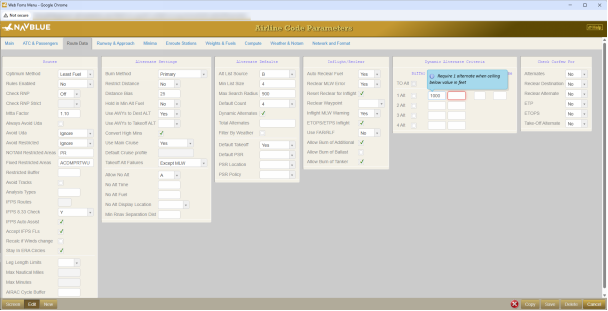
 Click the 1 Alt (Visibility) input field.
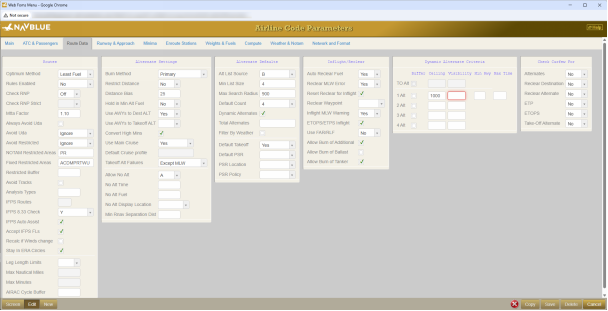
 Enter 1000 into the 1 Alt (Visibility) field.
N-FP evaluates whether the forecast Ceiling and Visibility meet the minimum requirement.
Note:
If you select the buffer option: N-FP calculates the total Ceiling and Visilibility required by adding the destination approach minima to the buffer value and compares it to the forecast.
If you do not select the buffer option: N-FP treats the Ceiling and Visibility values as static and will compare those values to the forecast.
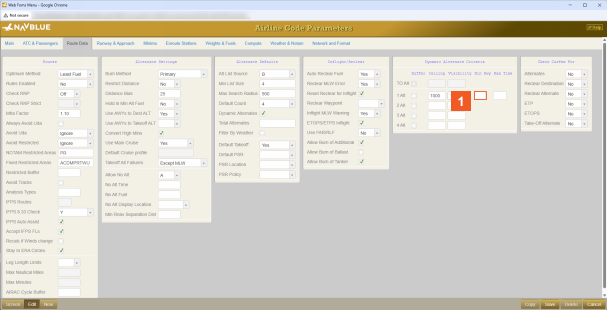
 Click the Min Rwy input field.
ATTENTION
When Ceiling and Visibility conditions exceed these thresholds (values), N-FP automatically applies the requirement for an alternate.
Once the Ceiling and Visibility fields are populated, you can optionally specify the minimum number of separate runways required at the destination airport.
In addition, a maximum allowable flight time can be defined using the Max Time field.
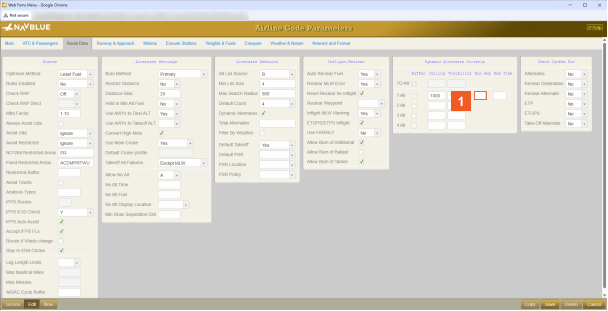
 Enter 3 into the Min Rwy field.
HINT
The system is only checking the number of separate runways available, it is not checking each runway against Minima.
The Min Runway and Max Time fields are optional.
The Min Runway can be left blank, or only one of the fields can be used.
If neither criteria are required, both fields can remain blank.
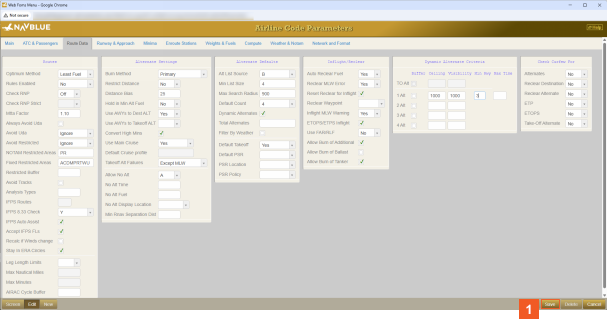
 Click the Save button.
N-FP evaluates whether the available runways meet the minimum requirement.
Note:
If fewer than the minimum number of suitable runways are available at the destination, an alternate is required.
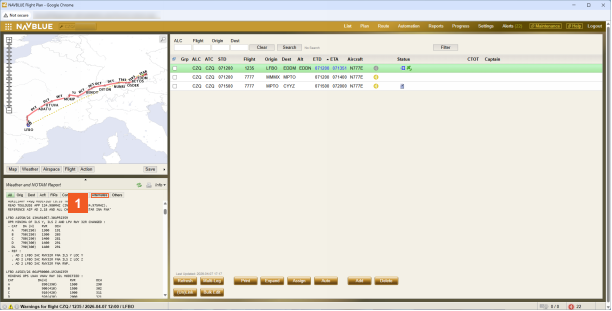
 Click the Alternates tab.
For this example, we have closed both the Maintenance and Aircraft Code Parameters menus.
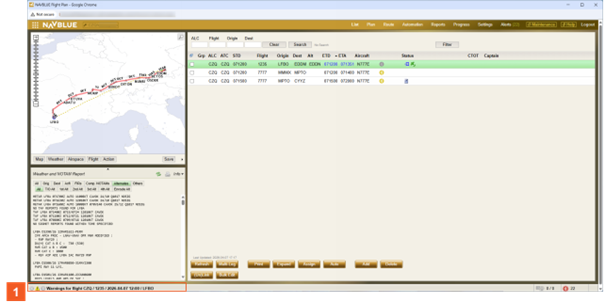
 Click Warning Message.
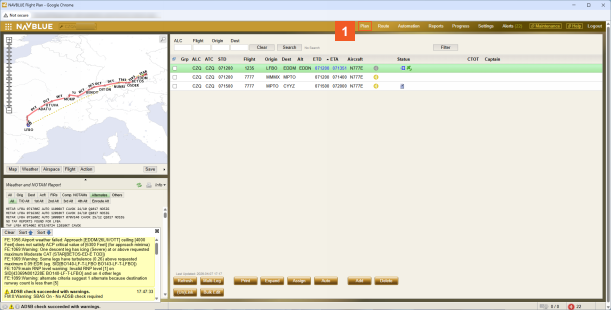
 Click the Plan menu item.
N-FP issues a warning if the Visibility, Ceiling, or runway count exceeds the defined tolerances.
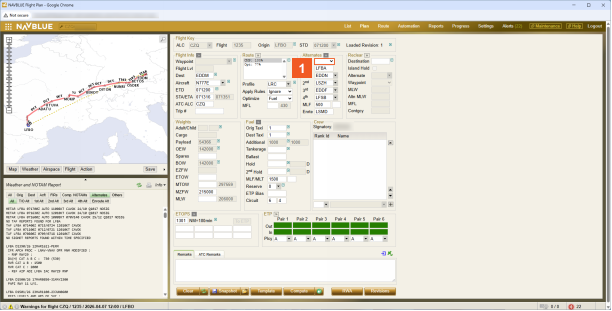
 Click the Altn dropdown button.
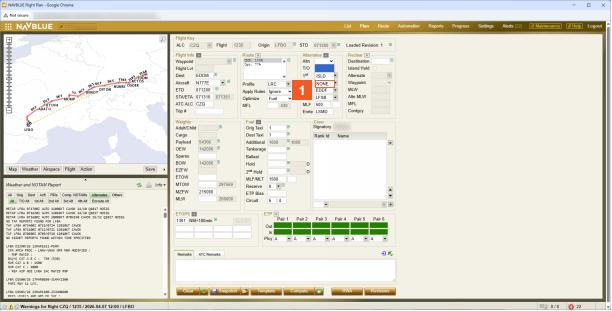
 Click the NONE list item.
A Flight Plan is manually computed with no alternate.
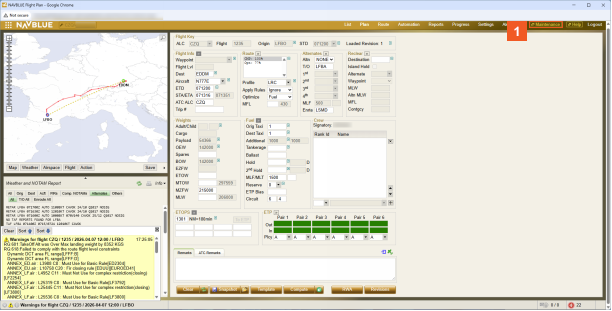
 Click the Maintenance menu item.
Using the previous example flight, we will now go through an example of adding Max Time.
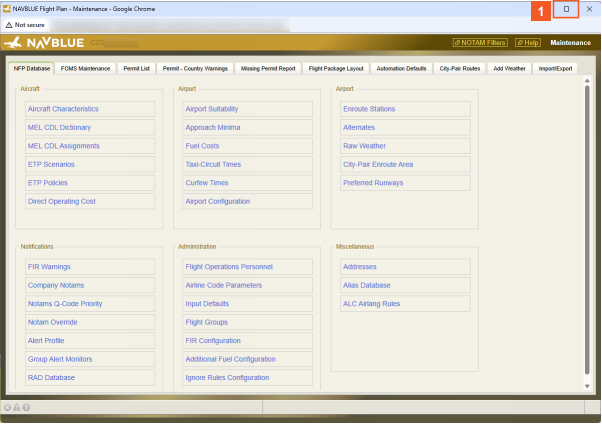
 Click the Maximize button.
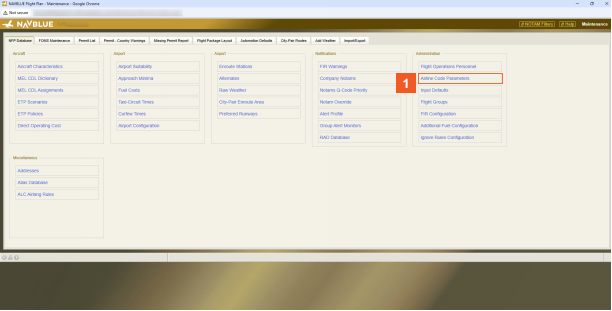
 Click the Airline Code Parameters list item.
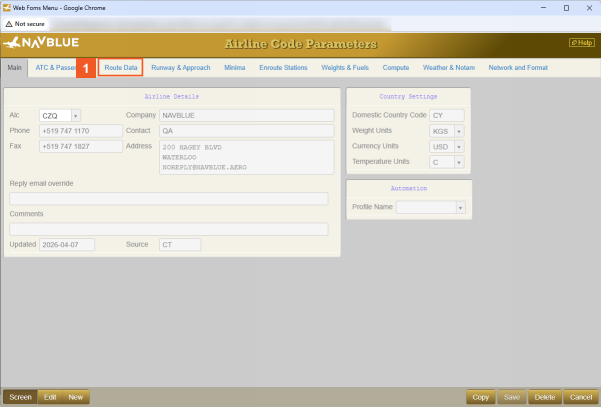
 Click the Route Data menu item.
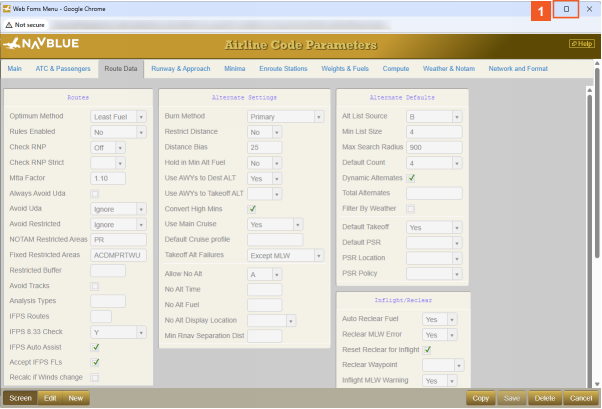
 Click the Maximize button.
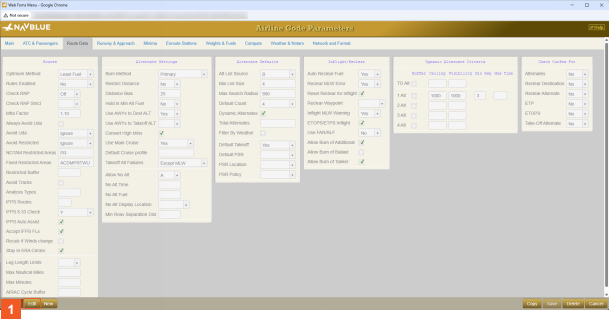
 Click the Edit button.
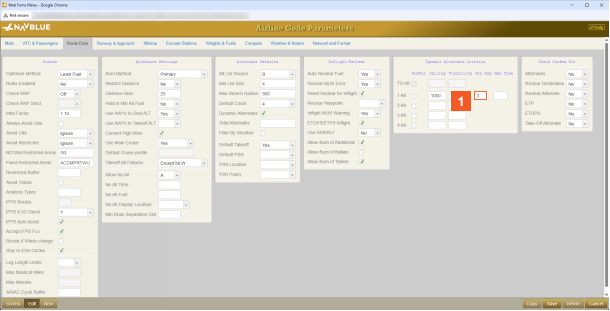
 Click the Min Rwy input field.
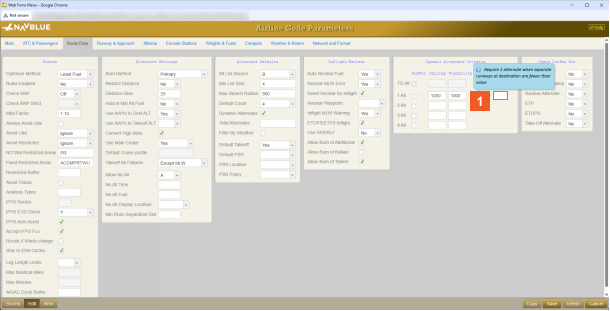
For this example, we have removed the Min Rwy value.
ATTENTION
If the flight time exceeds the defined Max Time, N-FP automatically applies a suitable alternate.
 Click the Max Time input field.
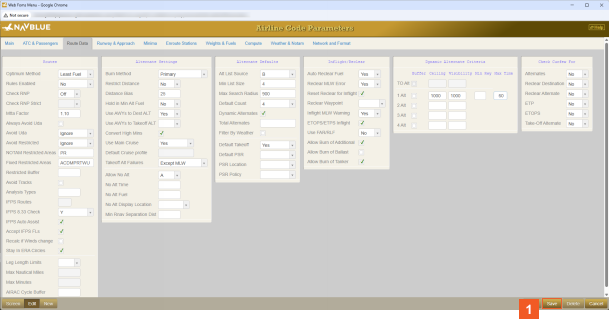
For this example, we have entered the Max Time value for you.
The Max Time value added is 60 minutes and a Flight Plan is manually computed with no alternate.
 Click the Save button.
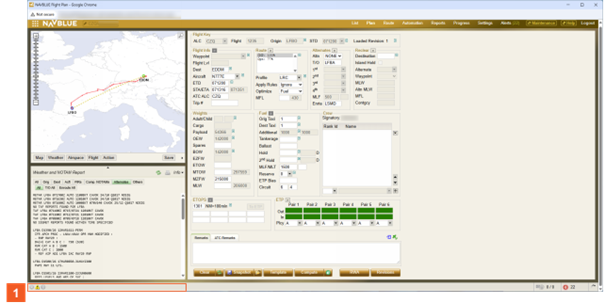
For this example, we have closed both the Maintenance and Aircraft Code Parameters menus.
ATTENTION
For the computed flight, a warning is generated because the planned flight time exceeds the 60-minute limit.
 Click Warning Message.